
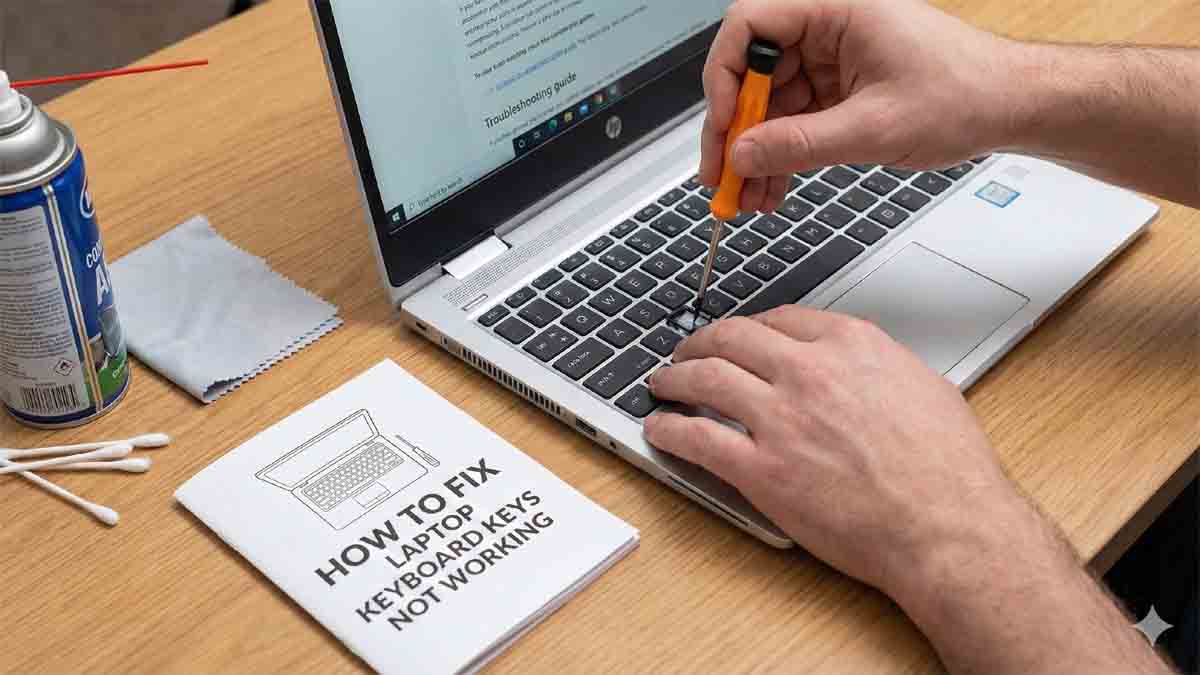
One contemporary annoyance that can completely stop productivity is a laptop keyboard that does not respond. so how to fix laptop keyboard keys not working While you are typing, some keys or the entire board may suddenly stop working. A methodical approach can frequently detect and resolve the issue before you have to settle for costly repairs or replacement. This guide will explain the causes of keyboard malfunctions and how you might be able to resolve them on your own.
Table of Contents
Understanding the Symptoms and Root Causes( how to fix laptop keyboard keys not working)
Keyboard issues manifest in various ways, each hinting at a different underlying cause:
- Specific Keys Not Working: Only a few keys (like ‘A’, ‘S’, ‘L’, or the spacebar) are unresponsive.
- Entire Section Dead: A whole column or row of keys fails.
- Keyboard Completely Unresponsive: No keys register any input.
- Intermittent or Ghost Typing: Keys work sporadically or characters repeat without being pressed.

These symptoms typically stem from a few key areas:
- Software Glitches: The most common and easiest to fix. This includes corrupted drivers, incorrect system settings or conflicts from recent updates.
- Physical Debris and Contamination: The enemy of all keyboards. Crumbs, dust, hair and liquid spills can physically block key mechanisms or cause short circuits.
- Loose or Damaged Connections: Inside your laptop the keyboard is connected to the motherboard via a thin, delicate ribbon cable. This can become dislodged or damaged.
- Worn-Out or Damaged Key Mechanisms: Individual keys have a complex plastic scissor-switch mechanism and a rubber dome that can wear out or break from heavy use.
- Hardware Failure: In rare cases, the keyboard’s circuitry itself can fail or a deeper issue with the laptop’s motherboard (like a damaged controller) can be the culprit.
The Step-by-Step Troubleshooting and Repair Process
Always start with the simplest, least invasive solutions before progressing to hardware interventions.
Phase 1: Software and Basic Checks
1. Restart Your Laptop:
This classic advice remains valid. A restart flushes the system’s temporary memory (RAM) and can clear out minor software glitches that may be causing the keyboard to freeze or malfunction.
2. Check for Physical Obstructions and Clean:
Turn off the laptop and disconnect it. Gently tap the bottom after tilting it sideways. To remove any debris from between the keys, use a compressed air can. Use a cotton swab that has been slightly moistened with isopropyl alcohol to gently clean the area around the non-working keys if there are any sticky remnants. Liquid should never be poured straight onto the keyboard.
3. Run the Hardware Troubleshooter (Windows):
Windows has built-in diagnostic tools. Go to Settings > Update & Security > Troubleshoot > Additional troubleshooters. Run the Keyboard Troubleshooter and follow any on-screen prompts.
4. Update or Reinstall Keyboard Drivers:
Corrupted or outdated drivers can cause key failures.
- Press Windows Key + X and select Device Manager.
- Expand the Keyboards section.
- Right-click on your laptop keyboard (often listed as “Standard PS/2 Keyboard” or similar) and select Update driver. Choose to search automatically.
- If that doesn’t work, right-click again and select Uninstall device. Restart your laptop. Windows will automatically reinstall the generic driver upon reboot.
5. Check for Operating System Updates:
Sometimes a recent Windows update can introduce bugs. Check for newer updates that might contain fixes. Go to Settings > Update & Security > Windows Update.
6. Boot into Safe Mode:
This launches Windows with just the necessary applications and drivers. A freshly installed program or driver is probably interfering with the keyboard if it functions flawlessly in Safe Mode. After that, you can use the Control Panel to remove recent software.
7. Test with an On-Screen Keyboard:
Activate the on-screen keyboard (Settings > Ease of Access > Keyboard) to confirm that the system itself is receiving inputs. This helps isolate the problem to the physical keyboard hardware.
Phase 2: Intermediate Hardware Interventions
8. Check for External Connections:
If you have an external keyboard connected via USB or Bluetooth, disconnect it. Sometimes, the system may be locked to the external device, disabling the internal keyboard.
9. Reset the Keyboard Connection (Internal):
Warning: This involves opening your laptop. Only proceed if you are comfortable and your laptop is out of warranty (as opening it may void the warranty).
- Power down completely, unplug the charger and remove the battery if it’s removable.
- Consult your laptop’s service manual or a teardown guide online for your specific model.
- Using the appropriate screwdrivers, open the bottom panel or the specific panel that grants access to the keyboard. Often, you need to remove the entire bottom case.
- Locate the keyboard ribbon cable. It is a flat, wide cable connected to the motherboard via a ZIF (Zero Insertion Force) connector.
- Gently lift the small locking flap of the connector (usually black or white), pull the cable straight out, wait a moment and then re-insert it firmly. Lock the flap back down.
- Reassemble the laptop and test. A significant number of issues are resolved simply by re-seating this connection.
Phase 3: Advanced Solutions and Replacement
10. Clean or Inspect for Spill Damage:
If you’ve experienced a liquid spill, time is critical. Even if it happened in the past, residual stickiness or corrosion can cause failures later.
- After disconnecting the internal cable (as in Step 9), you can often remove the entire keyboard by unscrewing a few screws from the bottom that hold it in place.
- Inspect the keyboard’s plastic membrane and the ribbon cable for signs of discoloration, stickiness, or white/green corrosion.
- For sticky spills: You can attempt a careful clean with isopropyl alcohol and a soft brush but success varies. For corrosion the keyboard is likely permanently damaged.
11. Replace Individual Key Caps or Mechanisms:
If only one key is broken (e.g., it feels loose or won’t snap back), you might just need a new key cap or scissor mechanism.
- You can purchase replacement kits online for specific laptop models.
- Use a plastic spadger or a small flat-head screwdriver to carefully pry off the key cap. Note the orientation of the plastic scissor mechanism underneath.
- Replace the broken mechanism or key cap and press down until it clicks into place. Be very gentle as these plastic pieces are fragile.
12. Replace the Entire Keyboard:
If multiple keys are dead a section is unresponsive or internal damage is found a full replacement is often the most practical solution.
- Source a compatible replacement keyboard for your exact laptop model (the part number is usually printed on the back of the old keyboard).
- Follow a disassembly guide for your model to remove the old keyboard. This usually involves removing the bottom case, disconnecting the ribbon cable and then unscrewing or unclipping the keyboard from the top palm rest assembly.
- Install the new keyboard by reversing the process. This is a cost-effective repair for the moderately skilled DIYer.
13. Consider Professional Repair or External Keyboard:
If:
- You are uncomfortable opening the laptop.
- The keyboard replacement doesn’t fix the issue (pointing to a possible motherboard failure).
- The cost of a new keyboard plus your time is not economical.
Then, your best options are: - Use a Reliable External USB Keyboard: A simple, immediate and often permanent workaround.
- Seek Professional Technician Help: For suspected motherboard issues or if you lack the tools/confidence a professional diagnosis is wise.
Prevention is Better Than Cure
To avoid future keyboard problems:
- Eat and Drink Away from Your Laptop: This is the single most effective preventative measure.
- Clean Regularly: Use compressed air every few months.
- Handle with Care: Avoid putting excessive pressure on the keyboard or prying at keys aggressively.
- Keep Software Updated: Maintain your OS and drivers.
Buy More usable items for home and office in Low price


